#
Tabs
Tabs in Obsidian work much like tabs in other apps, such as web browsers.
You can open as many tabs as you want in Obsidian. You can also arrange tabs to create custom layouts that persist until the next time you open the app.
Mobile tabs
On mobile, you can manage open tabs from the tab counter in the Navigation bar.
#
Open a new tab
At the top of the application window, next to the last tab on the right, select New tab (  ). Or, use a keyboard shortcut:
- Windows and Linux:
Ctrl+t - macOS:
Cmd+t
#
Open a link
Select a link in Obsidian to open it in the active tab.
To open a link in a new tab, press Ctrl (or Cmd on macOS) and select the link.
The following are all the modifier keys you can use to open links in various ways:
#
Organize your tabs and windows
Every tab belongs to a tab group. You can drag and drop tabs to rearrange them within a tab group, move them to a different tab group, or create a new tab group. On desktop, you can drag tabs out of their window to open them in a separate pop-out window.
Tabs in sidebars only show the icon. Hover over the icon to show a tooltip with the tab title.
#
Arrange tabs
To change the order of your tabs, drag the tab along the tabs in the tab group.
As you drag a tab, drop zones—areas onto which you can move the tab—become highlighted. The drop zone determines where to insert the tab. Some tabs can only be in one of the sidebars.
#
Split a tab group
Right-click a tab and select Split right or Split down to create a new tab group with that tab.
You can also split a tab group by dragging a tab to the bottom of another tab.
#
Resize a tab group
To resize a tab group, hover the cursor over an edge of the tab group. The edge becomes highlighted when it can be dragged to resize.
You can resize sidebars similarly to make more space for the tab groups in the middle.
#
Move tab to a new window
Drag and drop:
- Select and drag the tab outside of the application window to open it in a new window.
Command palette:
- Open the Command Palette, and select Move current tab to new window.
#
Move a tab to a different window
To move a tab to another existing window, drag the tab to the window you want to move it to.
#
Pin a tab
To pin a tab in the main editor, right-click the tab and select Pin. Links in a pinned tab always open in a separate tab.
To unpin a pinned tab in the main editor, right-click the tab and select Unpin.
To pin or unpin a tab in the sidebar, see pinning tabs in the sidebar.
#
Switch to a different tab
Select a tab to switch to it. Or, use a keyboard shortcut:
#
Stack tab groups
You can stack tabs to slide them over other tabs in the same tab group.
To stack notes, select the down arrow at the upper right corner of the tab group, and then select Stack notes.
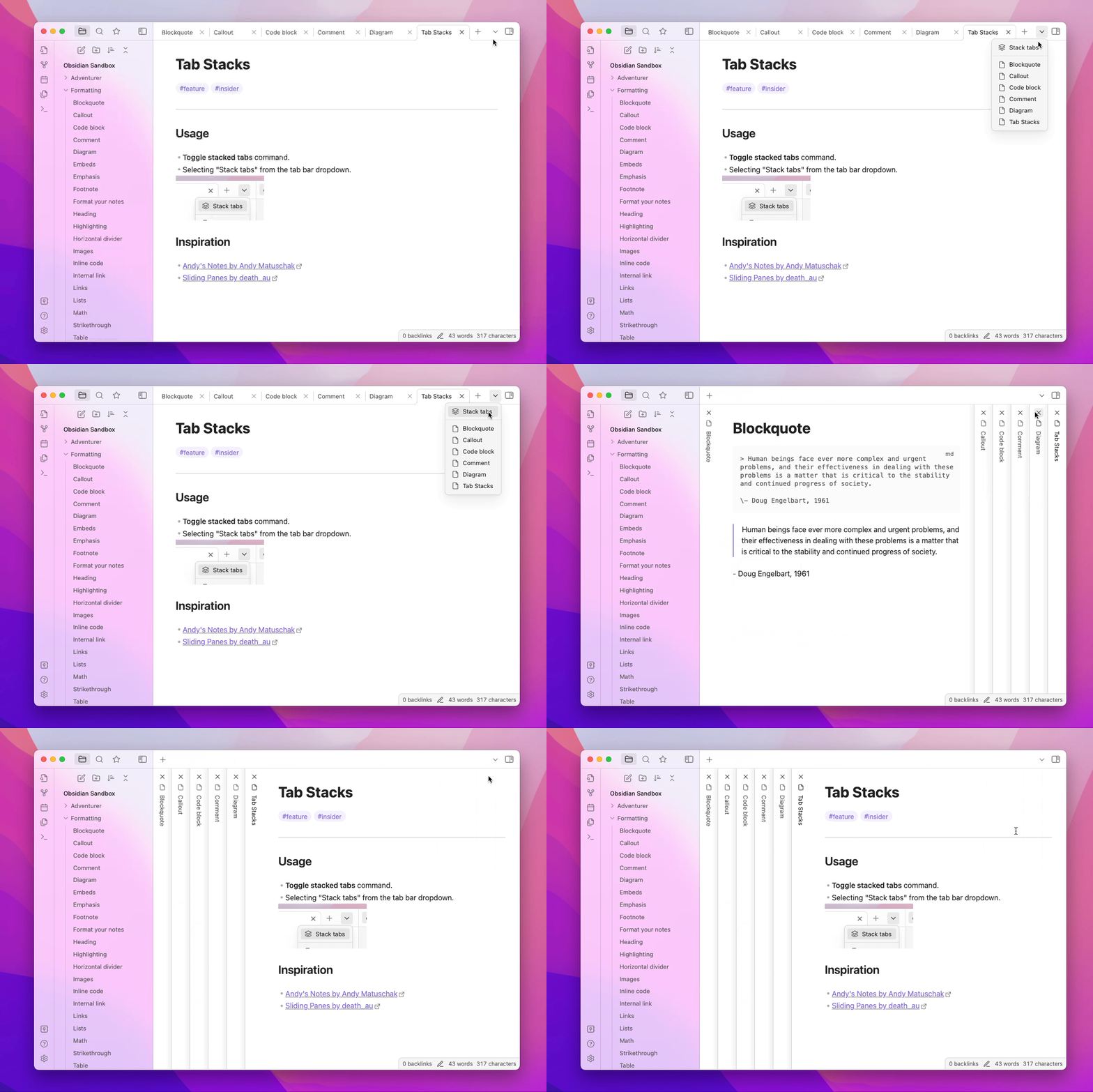
Tab stacks are inspired by Andy Matuschak's sliding notes.
#
Linked views
Linked views are tabs that reference a different tab. When the content of the referenced tab changes, the linked view changes as well.
For note tabs, you can use the following plugins as linked views:
- Graph view (local)
- Backlinks
- Outline
To open a linked view for a note tab:
- Select More options (
 ) in the upper right corner of the note.
 - Under Open linked view, select the linked view you want to open.
#
Save layouts
You can save and restore window layouts using the Workspaces plugin.
See also
There are many ways to drag and drop elements in Obsidian. This includes tabs, files, folders, and content.
This glossary includes common Obsidian terminology.
This page explains how to manage Obsidian Publish sites.
Learn about Obsidian's left and right sidebars and how to manage tabs and tab groups.
Web viewer is a core plugin that lets you open external links within Obsidian on desktop. This lets you reading link content without leaving the app
Learn about the Obsidian workspace and its core components on desktop and mobile.